The web app
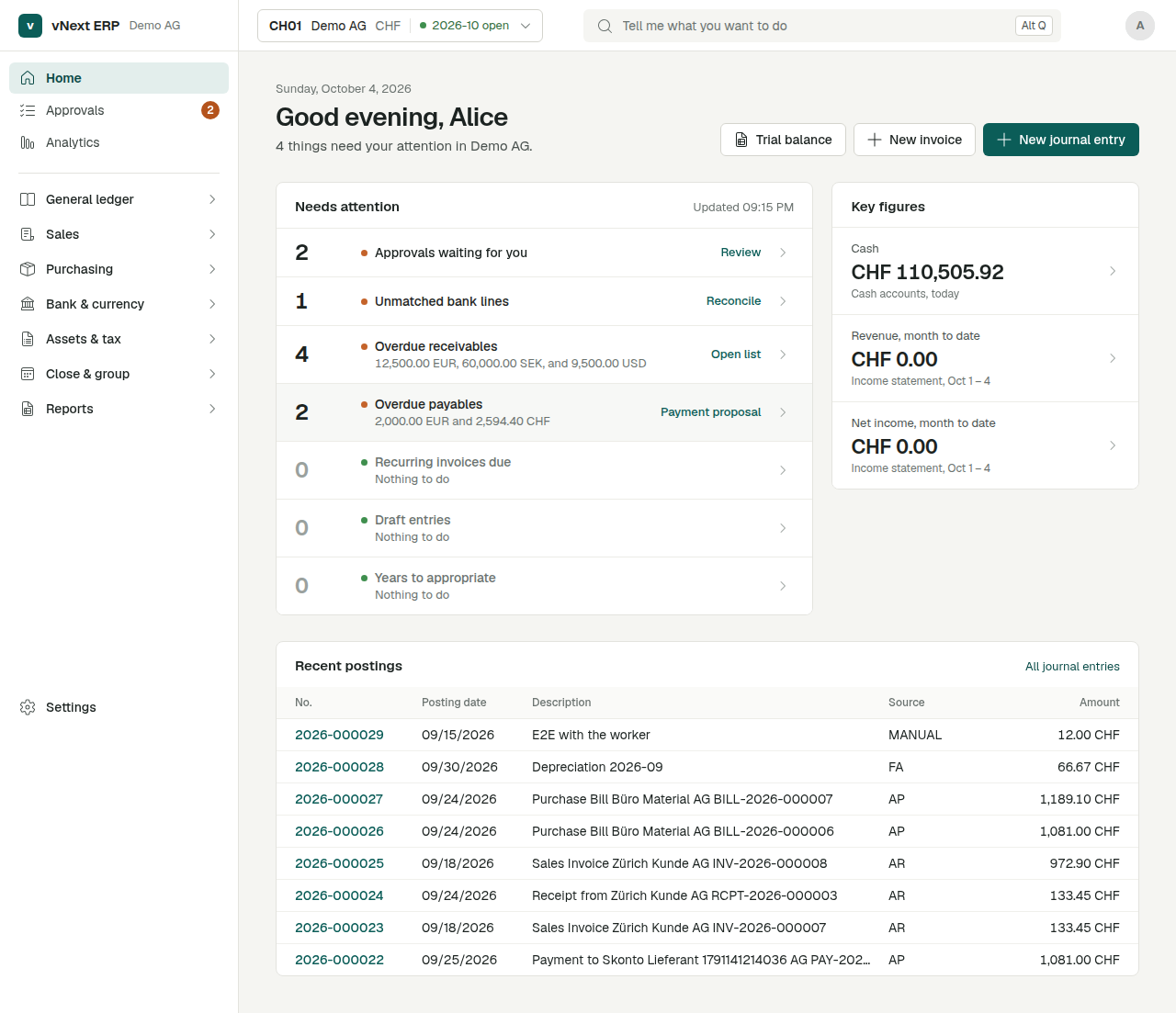
Stabiso ships a web client for people who work in the books every day. It is built with Microsoft's Fluent UI, restyled to a calm design of its own (Design), and is laid out the way people who come from modern SAP and Oracle ERPs expect:
- a sidebar that is always in view, grouped by business area (General ledger, Sales, Purchasing …);
- one context control on every page: the company, its currency and whether the period is open;
- a Home page that is a ranked work queue ("Needs attention");
- list pages that open card pages, with FastTabs;
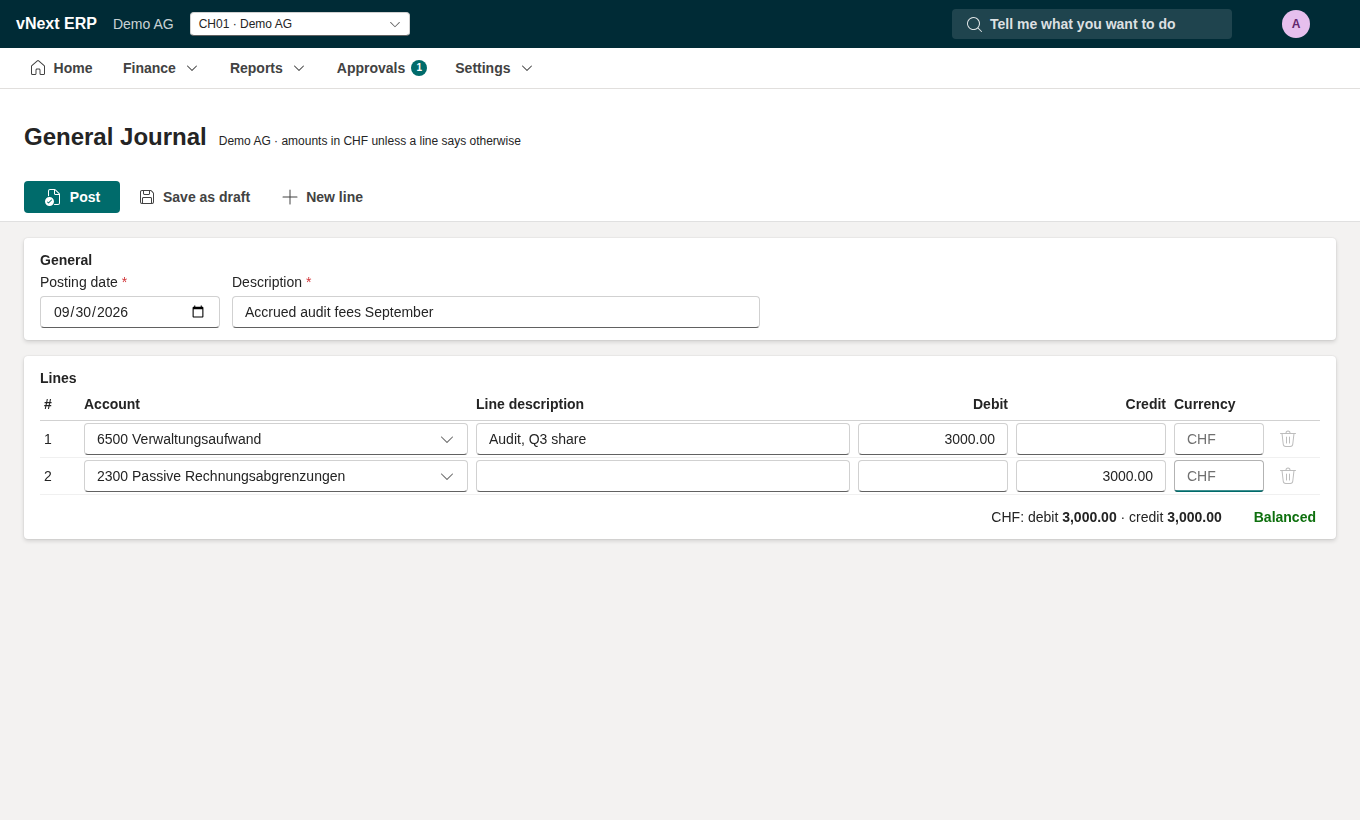
- a worksheet-style General Journal;
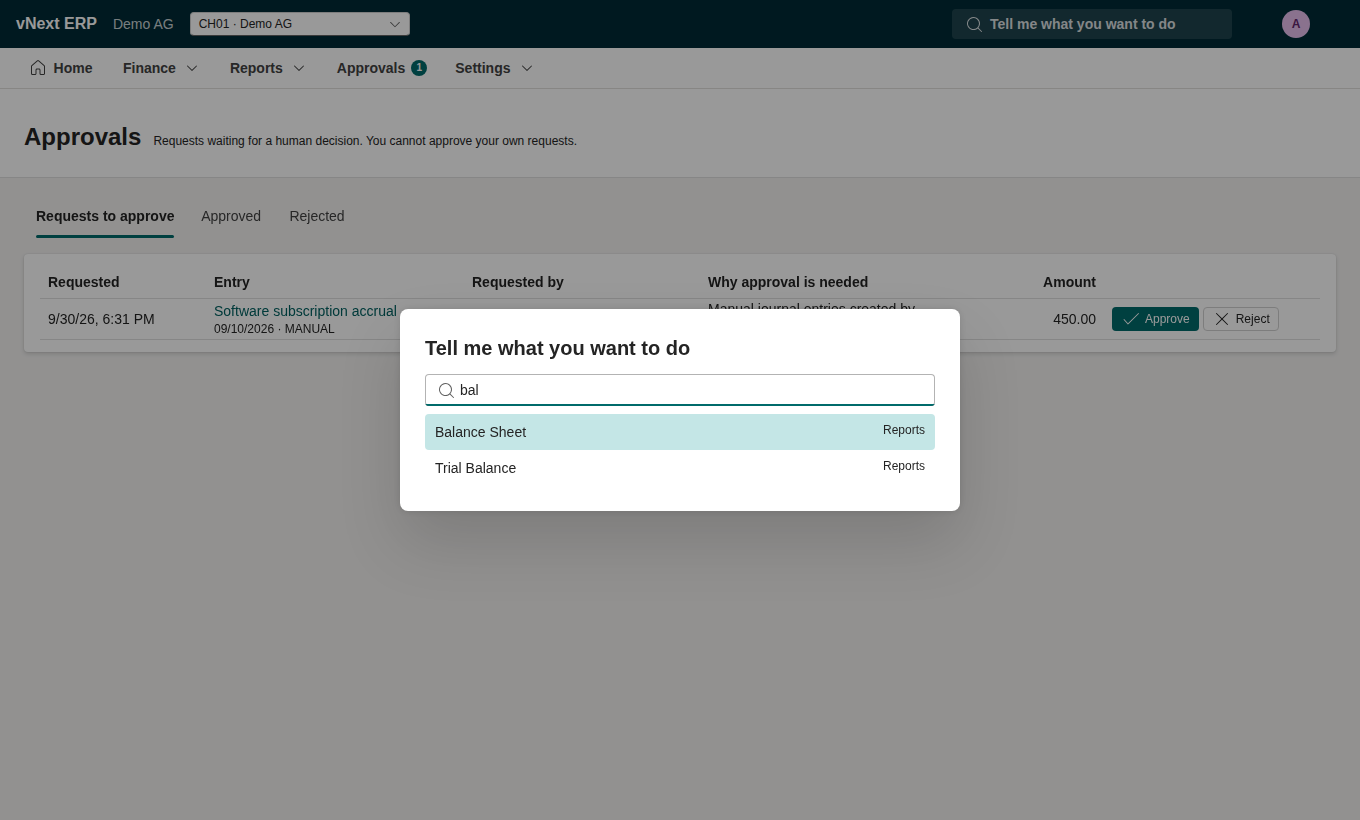
- "Tell me" search on Alt+Q: pages, actions and records (an invoice number, a customer).
The UI is a client of the same REST API that agents and integrations use, with the same
approval policy, four-eyes rule and audit trail. The API server serves it at /app.
Screens
A credit note opened from an invoice waits for its current remaining allowance and account details before its lines can be edited. Receipts and payments opened from an invoice refresh its open balance before suggesting the amount. After a partial payment, the next receipt starts with what is still owed. Bulk submission stays busy until the refreshed list is ready; a draft changed by someone else can then be selected again with its current version.
| Screen | What you can do |
|---|---|
Home (/) |
A greeting with today's date and one line that counts what needs your attention in the company. Needs attention is a ranked work queue: approvals waiting for you (only for someone who may approve, and only the requests the four-eyes rule lets them decide: not the ones they asked for, created, prepared or submitted; otherwise the company's pending requests show as "Approvals pending", grey, information only), unmatched bank lines, overdue receivables and payables (with the open amount per currency), recurring invoices due and years to appropriate come first with a rust dot when they have something to do; draft entries are information (a grey dot); a row at zero says "Nothing to do" with a green dot and sinks to the foot. Key figures shows cash, month-to-date revenue and net income with where each comes from, and Recent postings the latest entries. Every row and figure opens what it counts, and that list shows the same number: Approvals waiting for you the requests of the company you may decide (/approvals?entity=CH01&for_me=1, with a chip that removes the narrowing), Approvals pending the approvals of the company (/approvals?entity=CH01, with a chip that widens it to the organization), Draft entries the journal entries filtered to drafts (/journal-entries?status=draft), Unmatched bank lines the reconciliation worksheet (/bank-statements?lines=unmatched), Overdue receivables the open customer invoices due before today (/receivables?view=open&due=overdue) and Overdue payables the same for vendor bills (/bills?view=open&due=overdue), each with a removable filter chip. Recurring invoices due opens the due list of the recurring invoices (/recurring-invoices?due=1: active, next due date on or before today). Cash opens the trial balance narrowed to the cash accounts (?focus=cash, its total is the figure), Revenue and Net income, month to date the income statement from the first of the month to today. Overdue is the server's rule: due before today and still owed. |
Analytics (/analytics, at the top of the sidebar, in the phone menu and Tell me) |
How the company is doing, in four views, for one company (metrics and formulas, ADR-0030). A period selector (month, quarter, fiscal year to date, or custom dates) and a comparison (the previous period or the same period last year) sit in the URL (?period=month&month=2026-09&compare=year_ago); the server works out the comparison range and the page says which. Key figures: revenue, gross margin %, operating expenses, net income, cash, receivables, payables, DSO, DPO and working capital, each with its change against the comparison (an arrow, the difference, the percentage, and "better" or "worse" in words as well as colour) and a sparkline; two to a line on a phone. Trends, by month, for at least the twelve months up to the end of the period: revenue and expenses as bars with net income as a line, the cash balance, the receivables (or payables) aging as stacked buckets at each month end, and expenses by category. Breakdowns: top 10 customers by revenue, top 10 vendors by spend, revenue by currency and the expense mix. What moved: the accounts that changed by more than the materiality against the comparison, one plain sentence each (written from the numbers, in the user's language), and the entries with risk flags. Everything opens what it adds up, and that page shows the same amount or count: a figure opens the report that holds it (revenue and net income the income statement of the period; gross margin and operating expenses the income statement narrowed to those lines, ?line=pl.revenue,pl.cost_of_sales or pl.opex,pl.depreciation, with a chip and the total of the lines; cash, receivables and payables the trial balance as of the last day narrowed to those accounts, `?focus=cash |
| Chart of Accounts | Search and filter accounts, and see balances. Control accounts are marked "Subledger only". Opening an account shows its General Ledger entries with opening, running and closing balances and CSV export. Administrators add an account with New account (number, name, type and a report line the chart already uses for that type) and change one with Edit on its card: rename it, move it to another report line, or switch off Takes postings to block it (its history stays; accounts are never deleted). An account the system posts to (one with a role, or a control account) stays open, one with a balance or that an asset, product, contract or setting uses cannot be blocked (the reason is shown), and moving a control or required one to another report line waits for a second person. Number and type are fixed; roles are changed through the API (account roles); many accounts at once come in through Data Import. |
| General Journal | Enter an entry line by line. The account box searches by number or name, and only accounts you may post to directly are listed. The balance updates live, and lines in foreign currencies are converted at posting. Post or Save as draft. Unsaved work survives in-app navigation in the signed-in session. A refresh warns before discarding it; saving clears the warning. This local work is kept in memory, never on disk. Reverse automatically (accrual) adds a Reverse on date, the first of the month after the posting date unless you change it (it must be after the posting date): the reversal is posted on that day. The result tells you whether the entry was posted or sent for approval, and why. |
Recurring Journals (/recurring-journals, sidebar, General ledger) |
Journal entries that repeat, with frequency, next due date, amount per entry, whether each entry is reversed in the next period, and status; filter by status or Only those due (?due=1, the list the Role Center cue "Recurring journals due" counts). Post due journals makes the entries due through today and says how many were made, how many wait for approval and how many periods failed. New recurring journal opens the form: name, entry description, frequency, first and last due date, Reverse each entry on the first day of the next period (accrual) and the lines (account, description, debit or credit, currency) with their totals. The card has FastTabs: General (schedule, amount, reversal, who activated it), Lines and Entries made (each due date opens its entry and its reversal; a failed one shows its error). Actions follow the status: Activate a draft or Resume a paused one (a person, never an agent), Post due journals for this one, Edit, Pause with a reason. See recurring journals. |
| Journal Entries | List entries with filters (status, source, dates, text or number); New journal entry (with draft) opens the entry form. The entry card has FastTabs: General, Lines (with functional amounts), Tax & FX (treatment, rate, rule, dataset version, fixing), Provenance and integrity (source document, hash chain) and Audit trail. Actions are Submit (drafts) and Reverse (posted). |
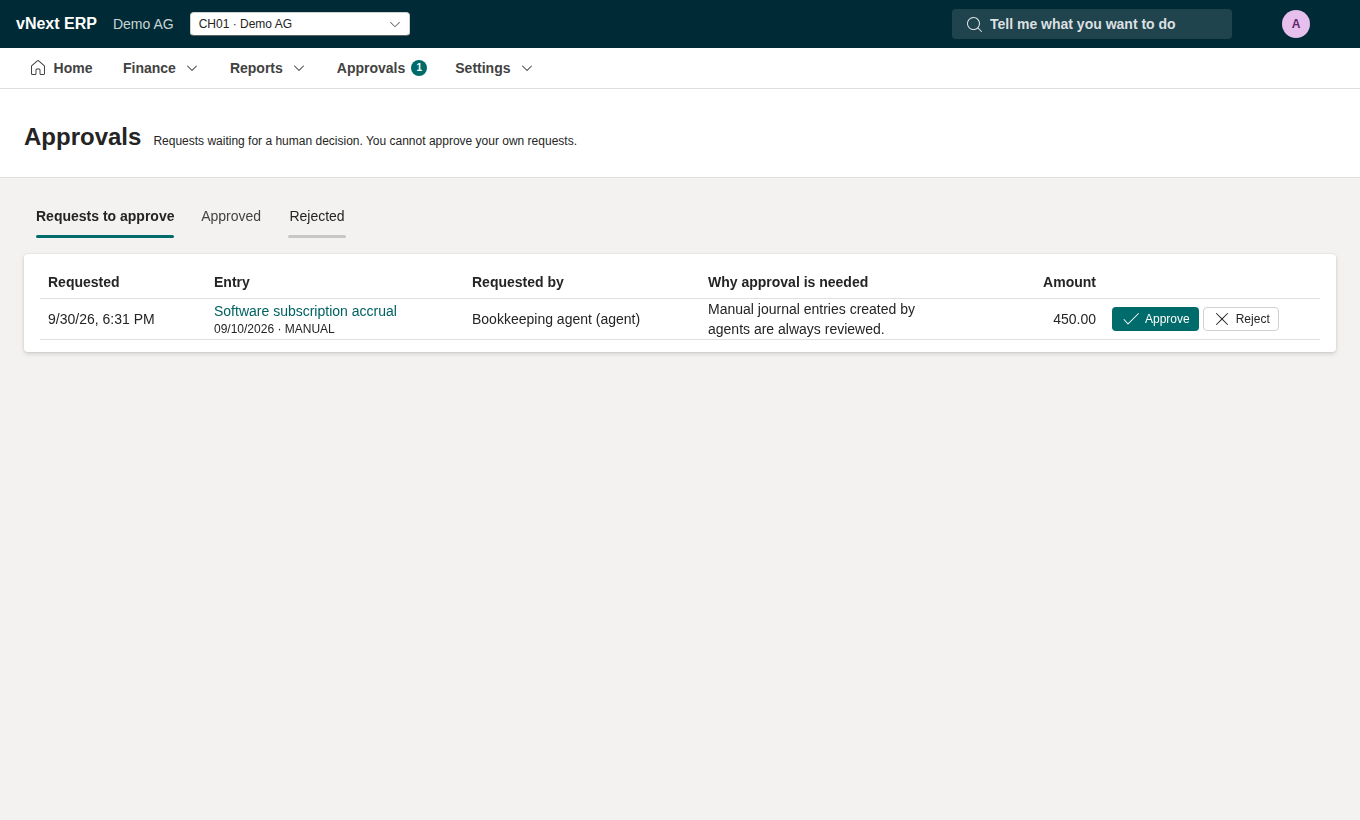
| Approvals | Requests of the whole organization waiting for a decision, as the badge in the navigation counts them (?entity=CH01 narrows them to one company, as the Role Center cue does), with who asked (a person or an agent) and the policy reason: journal entries, activations and new bank details of customers and vendors (they open the party card), purchase orders (they open the order), the terms of a recurring invoice (they open its card and say on their face whether each invoice is submitted automatically) and invoice variances against an order (they open the bill). Approve or reject with a comment. Tabs show past decisions; under Rejected, a request its requester took back (a posting limit, a policy change, or an entry she withdrew herself; withdrawn in ApprovalOut) shows a Withdrawn badge with her own words, not a rejection by herself. |
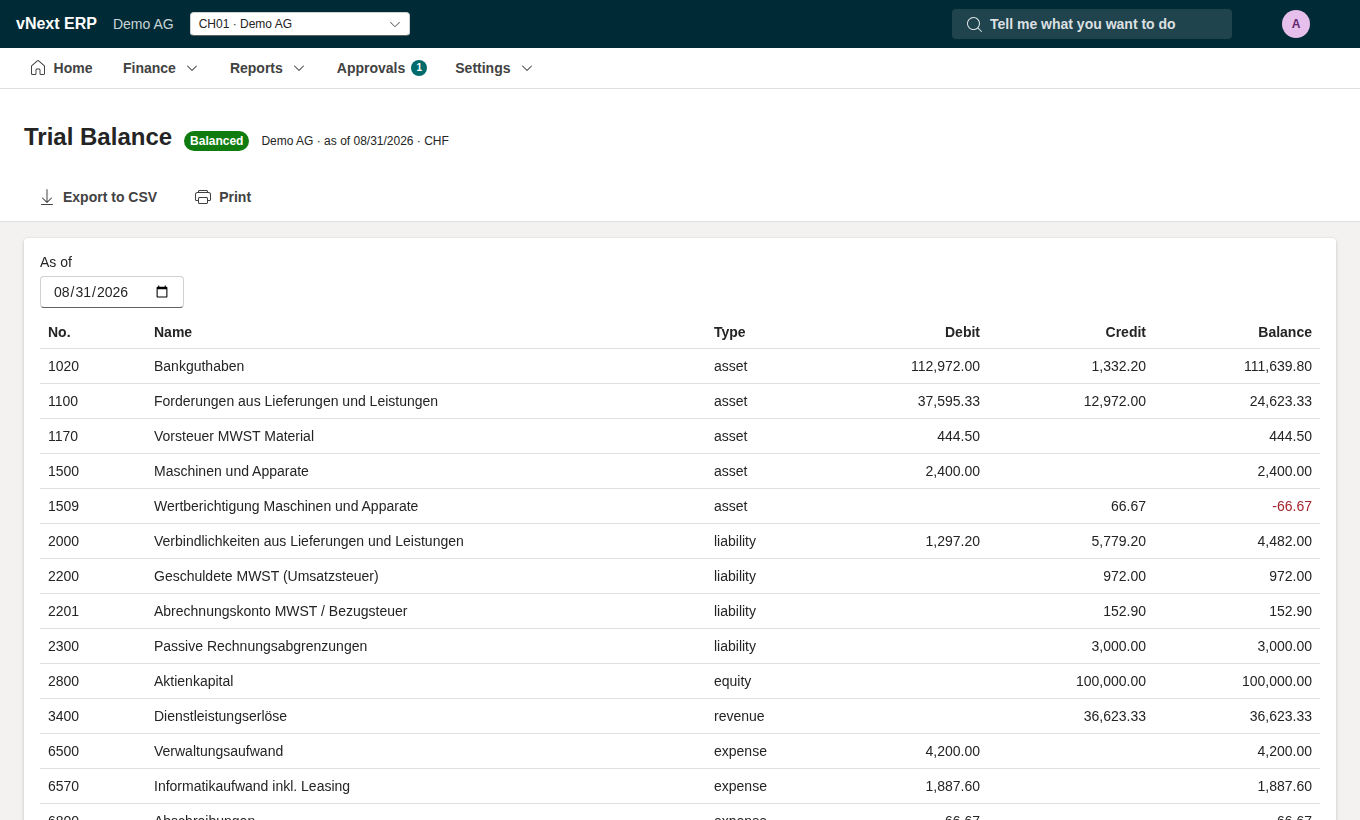
| Trial Balance, Income Statement, Balance Sheet | Pick the date or period (also in the URL: as_of, or start and end). The trial balance takes focus=cash, receivables or payables to show only those accounts and their total (a chip removes it); the income statement and the balance sheet take line= (report lines or their prefixes, comma separated) to show only those lines and their total. Every account drills down to its General Ledger and on to the journal entry. Export to CSV or print. |
| Customers, Vendors | Lists with search (name, number, VAT ID, town) and filters for status, country and VAT ID / UID; each row shows the open and overdue balance in the party's currency and whether a request waits for approval (Draft Vendors in Tell me opens the vendors to review). New customer / New vendor creates one. The party card has FastTabs: General (VAT ID, B2B or B2C, language, who created and who activated it), Address (the structured street, building number, postal code and town that QR-bills and XRechnung use), E-invoicing (electronic address and scheme, a customer's Leitweg-ID), Payment (payment terms, default account, IBAN and further bank accounts with BIC), Contacts, Balances (open and overdue per currency), Documents (invoices or bills, linked to their entries) and Changes (the audit trail). Edit changes the card in place, contacts and bank accounts included. A draft says why it is blocked; Activate activates it at once for a second person with the approve permission, and otherwise sends a request. New bank details wait for a second person too, and so do a new name, VAT number, country, region, currency or payment terms of a party past draft (the card shows the values now and after approval). A possible duplicate (another party of the company with the same VAT number, an IBAN in common or the same name) is named on the card and in the activation request in Approvals. Pending requests show on the card with Approve and Reject for whoever may decide them; payments that are blocked say why. See customer and vendor controls. |
Customer statement (/customers/{code}/statement, the Statement action on a customer's card) |
A customer's open items on a day (guide, ADR-0028): the day (?as_of=, today by default, never a later one), then per currency a balance tile and one tile per age band (not yet due, 1-30, 31-60, 61-90, over 90 days) with the amount and the number of items, the open items (document, type, dates, days overdue, age band, amount and open amount; a payment waiting for approval is marked), the tie to the ledger control account (the same sentence as the aging's) and the issued statements of the day with their SHA-256. Every tile opens what it counts: a currency's balance and each band filter the list below it (?currency=, ?bucket=, each a removable chip), and the list says how many items it shows, which is the number on the tile; a document number opens the document. Download PDF and Download CSV download what the API serves (the archived PDF once a statement was issued, else the one rendered now); Issue statement (a person with the post permission, not for a later day) archives the PDF and says so, and a second issue says nothing was changed. A statement is information: it posts nothing and is not a request for payment. |
Customer activity (/customers/{code}/activity, the Activity tab of the statement and the Activity action on a customer's card) |
What a customer owes us between two days and how it came about (guide): the period (?start=&end=, the first of the year to today by default), then per currency an opening and a closing tile and the movements (date, type, our number, the document a payment or application is for, amount, running balance), then the balance in the functional currency and the items still open at the end. The opening tile opens the open items of the day before the period, the closing tile those of its last day; a document number opens the document. Download PDF (in the customer's language) and Download CSV download what the API renders now; nothing is archived or posted. |
| Customer Invoices | All documents: every sales invoice and credit note, from draft to paid and void, with its order number, amount, open amount and status. A row of status views (All, Draft, Awaiting approval, Open, Overdue, Paid; ?status=) each says how many documents it holds; an overdue row says under its due date how many days it is overdue (overdue is the Home rule: due before today and still owed). Posted, rejected and void, which a link can still ask for (?status=void), show as a removable chip. Filter by text (number, customer, order number) and dates; party= and currency= (chips that remove themselves) narrow it to a customer or a currency, and the list says how many documents it shows. Tick rows (or all of them in the header) for the bulk actions that replace the filters while rows are picked: Submit the drafts among them and Download PDF of the posted ones (the bar says what it skipped and why any failed, and for several PDFs that the browser may ask to allow several downloads); Clear selection brings the filters back, and so does another view or filter, which also drops the picks. Rows have boxes only when an action applies (Submit needs the draft permission). A list loads at most 1000 documents and says so when it reaches that. A phone has no boxes: its rows are cards that open. Open items can be as of another day (as_of=, from the Analytics aging chart) and in one aging bucket (bucket=), and show their total in the functional currency. A row opens the document card. New invoice and New credit note open the entry form; Record receipt applies a customer's payment to one or more open invoices, partly or in full, with the cash discount the customer may still take. Open items is the aging view as of today (?view=open; &due=overdue keeps what is due before today, with a chip that removes the filter): Show QR-bill opens the Swiss QR-bill (payment part with receipt) in the UI language, with a PDF download (not for currencies other than CHF and EUR). A German company's invoices have Download XRechnung (XRechnung 3.0 CII); when an invoice cannot be issued yet (for example the customer has no Leitweg-ID or buyer reference), a dialog lists the rules it breaks. |
Recurring Invoices (/recurring-invoices, sidebar, Sales) |
The templates of invoices that repeat, with customer, frequency, next due date, net amount per invoice, how each invoice is submitted and status; filter by status or Only those due (?due=1, the list the Role Center cue counts). Make due invoices runs through today and says how many invoices were made and how many periods failed. New recurring invoice opens the form: name, customer (active ones), frequency, first and last due date, currency, payment terms in days, Submit each invoice automatically, notes and lines (the net per invoice as you type). The card has FastTabs: General (terms, who approved them and their fingerprint), Lines and Invoices made (each opens its invoice). Actions follow the status: Ask for approval, Approve and Reject for a second person (never the person who asked), Make due invoices, Edit (the form warns that changing an active template pauses it until its new terms are approved), Pause with a reason, Resume. See recurring invoices. |
| Vendor Bills | An Open items tab (?view=open, &due=overdue) lists the open vendor bills as of today, the same view as for customer invoices without the QR-bill. All documents: every bill and vendor credit note with its status, status views, overdue days, filters and Submit for picked drafts as on Customer Invoices, and its source: e-invoice (hover for the format), bill capture or entered. New bill opens the entry form. Upload a bill: each file is read as soon as it is chosen or dropped, a few at a time, with a row and a progress bar per file (queued, uploading with the share sent, reading or checking, read, or failed): an XRechnung (XML) or a PDF with embedded ZUGFeRD / Factur-X / XRechnung is read from its data and checked against the EN 16931 and XRechnung rules, any other PDF or a PNG, JPEG or WebP image is read by bill capture with the model. Nothing is booked yet. The row says what was read (vendor, invoice number, total) or why no bill can be made from it. A wizard (it opens by itself for one file, Review opens it for any row) leads through 1. What was read (the e-invoice check with every broken rule by rule id, or the fields, totals, lines, confidence and warnings the model read), 2. Vendor (the vendor matched, by VAT number, IBAN or name, marked when it is a draft; or, for an unknown vendor, a vendor form filled from the invoice with the VAT number checked in the public register of its country: VIES, the Swiss UID register or HMRC, showing the registered name and address, a warning when the name differs and Use the register's name and address; Create vendor creates it under the approval policy; or any existing vendor) and 3. Bill (Create bill: from an e-invoice as a draft, or submitted with Submit for posting; from bill capture submitted for approval, booked from the reading shown). With several files, Create n bills books every file that was read and can become a bill at once, as before (an unknown vendor is created as a draft). A failed file is read again with Read n files again; one that fails (a duplicate, an unreadable file, a server without a language model) does not stop the others. Details shows a booked file's result |
Purchase Orders (/purchase-orders) |
Every order with vendor, our reference, order and expected date, expected net and status; filter by status and text, or Only paid bills to review (paid bills that receipts recorded since would block). New purchase order opens the entry form: vendor (active ones), order and expected delivery date, currency, our reference, notes, and lines with description, type (goods or services), account, quantity, unit price and tax code, with the expected net as you type. Submit for approval or Save as draft. The order card has FastTabs: General (vendor, dates, payment terms, values ordered, received and invoiced, who created and approved it), Lines (2-way or 3-way, received and invoiced per line), Receipts, Bills (matched bills with their match status and payment block) and Status history. Actions follow the status: Submit, Edit for drafts; Approve and Reject for a second person while it waits; Receive (quantities per line, proposed as what is left, a date and a note); Cancel order with a reason while nothing was received or invoiced. See API: purchase orders. |
Document card (/documents/{id}) |
A sales invoice, credit note or vendor bill. FastTabs: General (number, party, vendor invoice number, dates, currency, status, net, VAT, total, open amount, order and buyer reference, payment details, credited document, source), Lines (account, description, quantity, unit price, VAT rate and treatment, amounts), VAT (per treatment, rate and jurisdiction, at the official VAT exchange rate when there is one, legal notes; foreign VAT booked as cost beside a self-assessment is a row of its own), Payments (payments and credit notes that settled it, open amount), Posting (the journal entry), Original file (the stored e-invoice XML, PDF or image: preview, open, download), Attachments (every file of the document with its source, size, SHA-256, who stored it and when, and a download for each: the original, the invoice as it was issued (the first PDF, ZUGFeRD or XRechnung output is kept, and every later download is that file) and the scans or received originals added afterwards; Attach a file… adds a PDF, PNG, JPEG or WebP file of up to 20 MB to any document, never replacing one), for a bill with an order number Purchase order matching (the order, the result, whether the bill is blocked for payment, the tolerance, each bill line against its order line with the price and quantity variances; Match again, and Approve variance with a reason for a second person with the approve permission; a bill that quotes an order its vendor does not have in the company says above the FastTabs that a second person approves or rejects it before it is posted, and once posted who approved it, or that it was posted without that approval) and History (status changes, approvals and audit events). Actions follow the status: Submit, Edit and Void for drafts, Resubmit for rejected documents (back to draft, then edit and submit; void and resubmit ask for a reason, kept in the history), Credit note, Download PDF (the invoice in the customer's language, with the QR-bill payment part for a Swiss company), Download ZUGFeRD (German companies: the hybrid PDF with the invoice data inside), Send… (a dialog with the recipient pre-filled from the customer's e-invoice or billing address, only the customer's own addresses accepted (another one is added to the customer first), an optional message and the format, PDF by default and ZUGFeRD, not yet verified for PDF/A-3, on request; on a server without a mail server it explains that and offers the downloads instead), Download XRechnung and QR-bill (PDF) for posted invoices, Download original; Mark as sent… for an invoice handed over outside the system (the downloaded PDF e-mailed from your own mailbox, post, the customer's portal: channel, recipient, day and which archived file; nothing is sent), a Sent FastTab lists what was sent or recorded (when, how, to whom, format, attachments with the start of their SHA-256, by whom). A PDF previews in a frame: the app's Content-Security-Policy allows frames from its own origin (frame-src 'self') for that, and the file itself may only be framed by the app; other originals preview as text or an image, or download. |
Invoice and bill entry (/documents/new?kind=…, /documents/{id}/edit) |
Customer or vendor picker (code or name), dates (an empty due date follows the payment terms), currency, order number, buyer reference, vendor invoice number and payment reference, notes. Lines with an account picker (empty: the party's or the company's default account), description, quantity, unit price, VAT rate type and supply type, and for vendor documents the VAT printed on the bill. A sales line can name a product: it takes the product's VAT rate type, supply type and revenue account, and proposes its list price in force on the document date in the document's currency (GET /v1/products/{product_id}/price), or says there is none. Net amounts are exact as you type; the VAT and total come from the server's tax determination (POST /v1/documents/preview). Save as draft or Submit (posted, or sent for approval). Saving a draft sends the version it was opened on (If-Match), so a change made by someone else in the meantime is reported instead of overwritten. A credit note can name the posted document it credits. |
| Vendor Payments | Record payment applies a payment to a vendor's open bills (several, partial, with cash discount). Payment proposal opens the proposal below. Outgoing payments with their payment type (domestic D or SEPA S), IBAN and release status. Select approved payments and Export payment file to download a pain.001 file for the bank. Each payment can be released once and then shows "sent"; anything that blocks a release (no IBAN, pending approval, a QR-IBAN without reference) is shown on the row. Where the payment is booked is on the row too (ADR-0060): "in transit on 1091 until the bank executes it" until its bank statement line is matched, then "executed by the bank on" the bank's booking day; a payment recorded with The bank already executed it (Record payment and the refund dialog: paid in e-banking, by card or in cash, no payment file) shows "paid, booked on 1020" and goes into no file. An execution date that is not a clearing day (SIC, and TARGET for EUR) is moved to the next one and the result says so. Needs the post permission. Below, Released payment files lists every file released, newest first (GET /v1/payment-exports), with who released it, its payments and control sum, and a download of each. |
| Payment Proposal | Business Central's "Suggest Vendor Payments": pick the payment date, the last payment date, vendors, the bank account and whether to take cash discounts. Suggest payments lists the open bills that are due, or whose cash discount would expire by then, with the discount and the amount to pay; both can be edited and lines unselected. Create payments creates one payment per vendor through the approval policy and says how many were posted and how many wait for approval; release them under Vendor Payments. Needs the draft permission. |
| Bank Statements | Import a camt.053 bank statement (the default), a camt.054 credit/debit notification or a CSV file from the bank, to the bank account of the file's IBAN or the one chosen (a CSV file: the company's bank account unless another is chosen). For a CSV file the page asks the server for a preview (POST .../bank-statements/preview): the columns it guessed (date, one amount or separate credit and debit columns, currency, counterparty, reference, text, separator, date format, decimal comma), each of which can be changed and read again, and the transactions read with their count, dates, money in and out and how many were already imported; a file that cannot be read says why next to the columns, and Import sends the same columns. The result says how many transactions were matched (QR and creditor references first). The reconciliation worksheet below shows the lines of one or all statements by status (unmatched, matched, ignored, all; ?lines= in the URL). Opening an unmatched line shows the open documents that fit it, scored with the reasons; select one or several of one party, adjust the amounts and cash discounts until nothing is left to apply, and Match. Or Post it to an account (bank charges are proposed for debits), or Ignore it with a reason; an ignored line can be reopened, a posted one opens its journal entry. Suggest matches (AI) asks the reconciliation assistant: its proposals (match or post, with confidence and reasons) are applied only when you Confirm them, as your own postings. |
| Fixed Assets | The asset register at a date: cost, accumulated depreciation and net book value. The asset card has FastTabs: General; Depreciation books, one row per book at the chosen date (the accounting book, which posts to the General Ledger, and each tax book such as ESTV or MACRS with its tax base, the temporary difference and, for the book that carries it, the deferred tax); and one schedule per book by fiscal year, read from the book itself (GET /v1/assets/{asset}/books/{book}/schedule) with its position on the chosen date, where a tax book also shows the accounting book's value and the difference. |
| Leases | The lessee's leases (IFRS 16) at a date: the liability in the lease currency, the part due within 12 months, the right-of-use asset and the months not booked yet; New lease and Post lease entries (a period's interest and depreciation, once per lease and period). The lease card shows the terms and accounts, the position (current and non-current liability), the schedule month by month, the changes of payments and the audit trail, with Activate, Change payments and End lease. A company under local rules is told that leases are usually expensed (leases). |
| VAT Returns | The return periods of the company for a year (VAT return and, in Germany, the ZM) with their status. Compute draft builds a return from the ledger; the return card shows the boxes per section of the official form (Ziffern, Kennzahlen), the ledger lines behind each box, the net tax rates per activity, the ZM rows, the reconciliation with the VAT accounts (with the part of the computational difference that comes from the official VAT exchange rates) and the official rates used for foreign-currency lines. Finalise posts the settlement (or sends it for approval) and locks the period's VAT postings; Amend opens a correction. Final is not filed: the Submission and payment panel of a final return offers Mark as submitted (the day, not before the period ends nor in the future, and the tax administration's reference; nothing is sent, and in a test copy the dialog says the record is only a note) and then Record payment, which links a posted entry on the settlement account picked from the candidates (usually the bank debit matched to 2202 on the bank worksheet; several for a part payment, the difference shown); each can be undone with a reason. The periods list badges each return Final, Submitted or Paid, and not paid when its VAT is unpaid after the due date; a period counts as filed, and its due-date reminders stop, only once its return is marked as submitted. Downloads: eCH-0217 XML (Swiss returns), ZM CSV, PDF and a printable page. |
Period Close (/period-close, sidebar, Close & group) |
The periods of a fiscal year (selector) with kind, dates, status and when they were closed; a row opens the close view of the period. It shows the close checklist: every check with its status (pass, fail, warning, n/a) and the server's explanation; a check that does not pass links to the screen that fixes it (approvals, draft entries, invoices or bills, bank statements, trial balance, data import, the earlier periods). Where a period-end run answers a failing check, Run depreciation, Run FX revaluation, Run deferred tax or Run revenue recognition (draft permission) runs it through the approval policy (the revenue recognition first shows what it would post, from GET /v1/periods/{period_id}/revenue-recognition/preview, and runs from there), and the result says whether the entry was posted (with a link to it) or awaits approval (with the policy's reason and a link to the Approvals). Close period is enabled only when no check fails and asks for confirmation (closing blocks all posting to the period); the server stays the authority, and a refusal (a check that failed in the meantime, the policy) is shown as it wrote it. A closed period has Reopen, which asks for a reason that the audit trail keeps. Closing and reopening are offered to a person with the approve permission only; anyone else, and every agent, sees the checklist and a note that says why there are no buttons. See API: close a period. |
Intercompany (/intercompany, sidebar, Bank & currency, and Tell me: "intercompany", "konzern", "intragroupe") |
The approved relationships between the companies of the group (guide). Tiles, each opening the list it counts with the same count: relationships, mirrors to accept, counterparts not made, rejected mirrors. The mirror documents list (`?links=drafted |
Exchange Rates (/exchange-rates, sidebar, Bank & currency, and Tell me: "fx", "currency") |
The ECB's rates against the company's currency (CHF for a Swiss company, EUR for a German one), the cross rates between currencies, one pair's history, a converter, the accounting rate beside the official VAT rate, and the foreign-currency exposure. Every figure comes from a documented operation, /v1/entities/{entity}/fx/... (reference), which reads data-vNext through the reference-data client; the page lays them out and calculates nothing. The date (default today) and the tab are in the URL (?date=, `?tab=rates |
Reports → Withholding tax (/reports/withholding-tax) |
The tax kept back from vendors' bills in a period (guide): the period and the basis (Bill date, as booked, or Payment date, the part released by the payments of the period) sit in the URL (?start=&end=&basis=); one row per bill or credit note with the vendor, the net amount, the rate, the tax in the document currency and in the company's, a number opening the document; the totals per code and the total on the withholding tax account. Export downloads the CSV the API serves. |
Reports → Archive Export (/reports/archive) |
For the Auditor role and administrators (the audit scope; other people do not see it in the menu). Pick a document date range for the selected company and Download ZIP: every original, issued invoice and attachment of its posted documents in the range, with a manifest as CSV and JSON (document, vendor invoice number, kind, date, party, total, file name, SHA-256, source, who stored it and when, and whether the file still matches its hash). The export is streamed and recorded in the audit trail. See ADR-0020. |
Reports → Audit files (/reports/audit-files) |
For every company. The files its auditors ask for (API): the tax auditor's file of its country (the FEC of a French company, the GoBD audit file (CSV tables with index.xml) of a German one, the SAF-T XML elsewhere) and the audit evidence pack (pipe-delimited tables after the AICPA Audit Data Standards, with a README) in every country. Pick the fiscal year (the current one by default) and optionally a range of its periods (closed ones only), see the dates and the number of posted entries, and each file's name with its download (Download FEC, Download ZIP, Download XML, Download pack). A year that is not closed yet is said so (the files hold what is posted so far); a French company without a VAT number (where the SIREN comes from) is told to enter it in the company settings, and can still download the evidence pack. |
Settings → Company Profile (/settings/company) |
Administrators change it, others read it; Save is in the page header. The legal name, VAT number or UID (its format is checked as you type: Swiss UID, German USt-IdNr), address, contact person, phone, e-mail and electronic address of the selected company: what every invoice says about its seller. A field left empty keeps what is stored. Saves with PATCH /v1/entities/{entity}. The Posting approval limit panel shows the company's limit with a one-line explanation (what one person posts above it, and its reversal, waits for a second person; ledger); an administrator lowers it at once with its own Save; a higher limit, or No limit (after a confirmation), waits for a second person under Approvals, and the panel shows the request that waits; an administrator alone in the organization changes it at once, and her own older request that still waits is withdrawn with it. The administrator who asked sees Withdraw on that request (POST /v1/approvals/{approval_id}/withdraw): the old limit stays, and a new request may be asked. Add company makes a further company with the setup questions (POST /v1/setup/companies); Add from a chart template makes one from a chart template picked from GET /v1/charts (the country's standard chart marked and chosen), with its framework, fiscal calendar and, if asked, its first fiscal year (POST /v1/entities). A document card whose invoice lacks content the law requires (a customer's town, the company's UID) names the fields with their provision and links here or to the customer card; printing and sending stay off until it is complete. |
| Settings → Users | Invite people by email with a role (and, for someone without a Google account, have Google e-mail them a link to set a password), change roles, and disable users. Inviting a Controller or Administrator, or raising someone to one of those roles, asks who the person is (name, relationship, firm) and a confirmation that it is a different person (ledger). |
Settings → Approver register (/settings/approvers) |
For administrators and auditors. Everyone who may approve, what their administrator declared about them, by whom and when, when they confirmed that their approvals are recorded in their name, and every change of their access. |
| Settings → Data Sources | Administrators only. Which reference data the companies need, where it comes from and whether it is current. The connection to data-vNext (in process or the HTTP service URL, reachable, dataset version, round trip, last error); cues for needed, up to date, stale, no data, errors and gaps; the needed data points grouped by domain, each with its authority (linked to the publisher), jurisdictions, what needs it ("CH01 Demo AG: VAT on invoices and bills"), method and cadence, the newest data (feeds) or last verification (curated), the last ingest run and a status badge. A row opens a drawer with the feeds and their freshness rules, record counts, official hosts and where the ERP uses the data. Other available sources lists the rest of the source register. See API: data sources. |
Settings → Data Import (/settings/import) |
Administrators only (the API lets anyone with the draft scope import customers, vendors and balances; accounts need the admin scope). Bring a customer's existing books in from a CSV or Excel file: choose what to import (customers, vendors, chart of accounts, opening balances, open customer invoices, open vendor bills), the opening date for balances and open items, and the file; download the CSV or Excel template for the type. Check file runs a dry run and lists every problem with its line, column and message (nothing is saved); the Import button is enabled only for a file that passed the check, and applies the whole file or nothing. The result shows what was created, vendors that wait for a second person's activation (a link opens the approvals), the opening entry if it waits for approval, and the balance of the opening balance clearing account (0 once balances and open items agree). See API: data import and the onboarding workflow. |
Settings → Bank Accounts (/settings/bank-accounts) |
Administrators change it, others read it. The company's bank accounts with their IBAN, QR-IBAN, BIC and account holder: the debit account of payment files and the creditor of QR-bills (a QR-bill is made from the account in the invoice's currency). Add bank account registers a bank account of the chart or opens a new one with its number, name and currency (an EUR account for the QR-bills of EUR invoices); Edit changes the details. The company's first bank details apply at once; a later new account, or a new IBAN or QR-IBAN, waits for a second person in Approvals (the row says so meanwhile, ADR-0043). Saves with POST /v1/entities/{entity}/accounts and PUT /v1/entities/{entity}/bank-accounts/{account}. |
Settings → Approval Policy (/settings/approval-policy) |
Everyone reads the policy in force in plain words (who, what, only when, the decision and why) and its history; administrators change the rules or return to the built-in policy, with the version they read as If-Match. A change that relaxes any decision waits for a second administrator: the page says so after saving, keeps showing the rules in force and shows the waiting change (who asked, when, and what it relaxes, such as "human, change posting limit: second person → allowed") with a link to Approvals, where a second administrator approves or rejects it with that summary. The administrator who asked sees Withdraw on that bar (POST /v1/approvals/{approval_id}/withdraw), so a change nobody else may decide (no second administrator) never blocks the next one; the rules in force stay. An administrator alone in the organization relaxes the policy at once, and her own older change that still waits is withdrawn with it. A change that only tightens applies at once. |
Settings → Test copies (/settings/test-copies) |
Administrators only. Make a clone of the organization (optionally with customers and vendors masked), refresh it now or every night or week, copy its link, add sample data to a test organization, remove a copy. See test copies and environments. |
| Environment picker (top bar, next to the company) | Production and each of its test copies by name; one click switches without signing in again. Every page of a test organization shows a banner. See test copies and environments. |
| Avatar → Language | Show the UI in English, German, French or Italian, or follow the browser. See Languages. |
| Trial Balance | Approvals | Tell me (Alt+Q) |
|---|---|---|
 |
 |
 |
Setup has screens for the company profile and for customers and vendors (addresses and the rest of their cards); entities, fiscal years and their calendars (4-4-5, thirteen periods,
adjustment periods; see Fiscal calendars) and tax books are
created through the API. The report pages pick dates; reports by fiscal period, with year to
date and comparatives, are in the API (reports/period-profit-and-loss).
Tell me
Alt+Q (or the search box in the header, "Search or tell me what to do") opens Tell me. With nothing typed it lists, as groups with headers a screen reader announces: Recent (the last five entries you opened through Tell me or the navigation, kept per user in this browser and cleared at sign-out; the page the app opened on does not count), then Actions (New Journal Entry, New Sales Invoice, Record Receipt, Upload Bills, Import Data, ...), Finance, Sales, Purchasing, Banking, Reports (with Analytics) and Settings; a section header is in small capitals with a rule above it. A section you may not use is left out; inside a section the entries are in alphabetical order of your language. With a query it is one list ranked by how well the entry matches: exact, then the start of the title, the start of a word, inside the text, and, only when nothing matches in those ways and the word has four letters or more, the letters in order ("tbal" finds Trial Balance); the matched letters are in bold. Each entry also answers to synonyms in English, German, French and Italian whatever the interface language: "Debitoren" or "AR" finds Customer Invoices, "Buchung" the General Journal, "MWST" or "VAT" VAT Returns, "Kurs" or "FX" Exchange Rates. Equal matches are ordered by recent use, then alphabetically. The catalogue is ui/src/lib/commands.ts; a unit test reads the routes of App.tsx and fails when a page has no entry, so a new page must be added there (with its area and its synonyms in the four catalogues, tellMe.keywords.<id>).
With a query of two characters or more it also searches the organization's records (GET /v1/search, the read permission): sales invoices and credit notes, vendor bills and credit notes, purchase orders, journal entries, payments, customers and vendors, in every company of the organization (in a test copy, that copy's). Numbers and references are compared on their letters and digits only, so inv2026000012, INV-2026-000012 and 2026-000012 find the same invoice; a vendor's own invoice number, a payment or QR reference, an order or buyer reference, a journal entry's source, a VAT number, a name or an entry's description find it too. The records come below the pages and actions (so the entry under the keyboard does not move when they arrive), under a header per type, best match first: the exact number, then a number that starts with the text, then the rest, newest first, at most five of a type. Each shows its number and customer or vendor, the company, date, amount and status, and, when the text was found elsewhere than in the number or name, where ("Vendor's invoice no.: BM-4411"). Opening a record of another company switches to that company; a payment opens its journal entry. Agents use the same search as the MCP tool find_records.
Filling in a form
Every field says under it what goes in it, with an example. Where the usual values are known, they sit under the field as chips: one click fills them in (the service-level standards of a support queue, an inbox address of your company's domain). A code is made from the name as you type it, and a new record starts with the settings most companies keep. Forms whose answers depend on your business have Suggest with AI: it proposes a value for each field it can, each with a sentence saying why, from what the form is for and your company's country, industry and currency. It never saves anything and never makes up names, addresses, amounts or bank details; check what it put in and save. When the AI does not answer within about half a minute, the form stays as it was and the button asks you to try again (ADR-0112).
Suggest with AI is on the support queue form, on New account of the chart of accounts (the
type and the report line an account of that name belongs to) and on a new field of your own under
Settings › Your own fields (whether it takes text, a number, a date, yes or no or a choice, and
the choices). A country, such as a new customer's or vendor's, is picked from the list of countries,
your company's own first. The code of a cost centre or project, of one of its values and of a price
list is made from the name when you leave it empty (Wholesale CHF is WHOLESALE-CHF), with -2
added when the code is taken; the API does the same when the code is left out. Filters above a list
and the choices of a report carry no hint: what they narrow is their label.
Keyboard
| Keys | Where | Action |
|---|---|---|
| Alt+Q | anywhere | Search or tell me what to do (pages, actions and records) |
| ↑ / ↓, Enter | Tell me | move through the whole list, across the section headers; open the entry |
| ↑ / ↓, Enter | lists | move between rows, open the row |
| Enter | General Journal | next cell; a new line after the last cell |
| Alt+N | General Journal | new line |
| Ctrl+Enter | General Journal | post |
Number fields (a quantity, a price, an amount, a rate, a number of days) choose their whole value when you enter them by click, Tab or touch, so what you type replaces it: a quantity that starts at 1 becomes 10 when you type 10. A second click places the cursor inside the number as usual.
An address the app has no page for (mistyped, or an old link) shows "Page not found" with the address and a link to Home; it never jumps to Home on its own.
Design
One set of tokens, ui/src/app/theme.ts, styles every screen. The Fluent theme is built from it (so every Fluent
component, from a button to a dialog, takes its colours), and the shared components (PageHeader, Panel, Cue,
Kpi, StatusBadge, DataTable, FastTabs) take the rest from its ui object. A page does not write a colour, a
shadow or a font of its own: it uses these components, Fluent's tokens, or ui. A new screen picks up the design
by being built from them.
| Role | Value |
|---|---|
| Ground (behind the cards) | #f5f5f2 |
| Surface (cards, header, sidebar) | #ffffff with a 1 px #e3e3de border; rules between rows #ecece7, #f0f0ec |
| Control border | #d4d4cd |
| Ink 1 to 4 (text) | #1c2321, #4a524f, #646b68, #9aa19e |
| Brand (teal) | #0b5d58, hover #084b47, pressed #063b38; tint of a selected item #e3eeec |
| Attention (rust): what asks for action, negative amounts | #b4531c, dot #c4632a |
| Success | text #2f6b3a, dot #3f8f4e |
- Type: Geist, self-hosted (
@fontsource-variable/geist, the CSP allows no font host), 14/20 px. Every figure is tabular (tabular-nums). Page titles are 28 px, card titles 15 px. - Shape: radius 4 (keycaps, chips), 6 (buttons, fields, navigation items), 8 (cards). No shadows in the page; only what floats (menus, dialogs, tooltips) has one. Hover changes the background only (120 ms), never lifts.
- Page head (
PageHeader): the breadcrumb (the business area, and on a record the list it belongs to as a link;upnames the list of a page whose address does not, such as a document under Customer invoices or Vendor bills), the title, what the page is for, and the actions on the right. Every page but a list has a Back arrow before the breadcrumb (on a phone, the arrow and the page's name): it returns to the page the record was opened from (its name is the arrow's label, "Back to C-HH Hamburg Handel GmbH"), or to its list when it was opened by its address. - Going back (
app/history.ts): a list comes back with the filters and view in its address and its scroll position, whether by the Back arrow, the breadcrumb's link or the browser's Back; a column sort is not kept. The breadcrumb's link remembers each list per company, so a filter set in one company never follows into another. A page opened anew starts at its top. Cancel on a form goes back the same way. Saving an edit returns to the record's card (back in the history when the form was opened from it, so the form is not left behind), and saving a new record replaces the form with the card, so Back never reopens a form. - Fields (
Fields, in a FastTab): the label left, the value right; a value too long for the space beside its label moves under it and wraps at its punctuation (an email after the @), never past the card's edge. A field without a value shows a dash. - Cards (
Panel): white, hairline border, a 15 px title with optional meta on the right (meta), andflushfor a list that runs to the card's edges. - Lists: status views as tabs, each with its count (
ListViews), above the filters; rows picked with their boxes (DataTable'sselection) swap the filters for a teal bar of bulk actions (BulkBar, selected rows#f2f7f6). A date past due carries "N days overdue" in rust under it. - Status (
StatusBadge): a chip with a dot. Green is done (posted, paid), blue is open, amber waits on someone (pending approval, partially paid), grey is a draft or inactive, rust is a problem (rejected, variance). - Focus: a 2 px teal ring, 2 px off the element, on everything you can click.
The operator portal (/admin) shares the tokens and components but keeps its own red header, so an operator
cannot mistake where they are.
On a phone or a tablet
The same app, three layouts (the breakpoints are in ui/src/lib/responsive.ts and ui/src/styles.css):
| Width | Layout |
|---|---|
| Desktop, 1024 px and wider | The header (the product and organization, the context button, Tell me and the account menu) and the sidebar: Home, Approvals (with the count of pending requests) and Analytics, then the business areas as groups that open and close, and Settings at its foot. |
| Tablet, 640 to 1023 px (an iPad at 768) | The desktop layout, tightened: the sidebar is a 64 px rail of icons whose areas open as menus (on hover or a click), the context button shows the company's code and the period, and Home's two columns stack. A table that is wider than the screen scrolls inside its panel with its first column held in place; the page itself never scrolls sideways. |
| Phone, under 640 px (360 to 430 px) | One column. The navigation is a menu button that opens a drawer with the sidebar's entries (Home, Approvals with its count, Analytics, the business areas, Settings), the area of the current page open; the context button shows the company's code and the period; Tell me is a search icon. Every list is a stack of cards (below). Home's work queue, figures and postings are one column. Forms are one column, line grids (journal lines, invoice lines) are one small form per line, dialogs fill the screen (a small confirmation stays a centred card), and buttons, fields and tabs are at least 44 px tall. |
Lists on a phone. A list of records (invoices, bills, journal entries, open items, approvals, accounts, orders, payments …) has no table on a phone: each row is a card with the record's number or name and its amount on the first line, the party or description under it, and the dates, status and other fields as small captions with their values; buttons of the row sit at its foot. A tap anywhere on the card opens the record, as a click on a row does on a desktop; for the keyboard and screen readers the card's title is a button named by the record's number or name, the card's one tab stop (its own buttons follow it). The cards show the same rows as the table (a browser test compares them with the API). Sorting by a column heading is a desktop and tablet feature. Tables inside a record (the lines of a document, a depreciation schedule, the VAT breakdown) are wider than a phone, so they scroll sideways inside their panel (on a tablet with their first column held in place).
The screenshot sweep keeps every route at 375 x 812 and 768 x 1024 as well as at 1280 and 1600 (CI artifact ui-screenshots, files 375-*.png, 768-*.png, plus 375-menu-open.png and 375-tell-me.png), and fails when the page is wider than the screen or a control a finger must hit is smaller than 44 px.
Languages
The UI speaks English, German, French and Italian, in their Swiss variants: en, de-CH
(Swiss High German: "ss", never "ß"), fr-CH and it-CH.
- The UI starts in the browser's language (any German, French or Italian browser setting maps to the Swiss variant). Other languages get English.
- Users can pick a language under their avatar → Language. The choice is saved on their
user (
PATCH /v1/mewith{"locale": "de-CH"},nullto follow the browser again), so it follows them to every browser.GET /v1/mereturns it aslocale. <html lang>, numbers and dates follow the language. German, French and Italian use Swiss formats (1’234.50,01.09.2026); English uses the browser's English variant (en-US, en-GB…) or Swiss formats otherwise. Date pickers are drawn by the browser in its own language.- Amounts show as many decimals as their currency has under ISO 4217: JPY 0, CHF and EUR 2, KWD and BHD 3. Formatting works on the decimal string from the API, never on floats.
- Messages from the server (for example a policy's reason or a validation error) are shown as the server wrote them, in English. Account names, descriptions and other data are shown as entered.
Adding a string or a language
Translations live in ui/src/i18n/locales, one JSON catalog per language, grouped by screen
(journal.*, entry.* …) plus shared groups (common.*, column.*, page.*).
- A new string: add it to
en.json, then tode-CH.json,fr-CH.jsonandit-CH.json, and use it withconst { t } = useTranslation(); t("area.key"). Keys are type-checked againsten.json, so a typo failsnpm run typecheck.npm testfails when a catalog lacks a key, drops a{{placeholder}}, misses a plural form its language needs (_one,_other, plus_manyin French and Italian) or contains "ß". - Codes from the API (statuses, sources, account types, report lines) are labelled by the
helpers in
ui/src/i18n/labels.ts. An unknown code falls back to a readable form of itself. - A new language: add its catalog, register it in
LOCALES,LOCALE_NAMESandresourcesinui/src/i18n/index.ts, and add the tag toLocaleinsrc/erp/modules/users.pyso users can save it. The database accepts any well-formed tag.
Terminology
Use these terms so screens, reports and documentation agree:
| English | Deutsch (CH) | Français (CH) | Italiano (CH) |
|---|---|---|---|
| Chart of Accounts | Kontenplan | Plan comptable | Piano dei conti |
| General Ledger | Hauptbuch | Grand livre | Libro mastro |
| General Journal | Buchungsjournal | Journal général | Giornale di contabilità generale |
| Journal Entry | Buchung | Écriture | Registrazione |
| Trial Balance | Saldenliste | Balance | Bilancio di verifica |
| Income Statement | Erfolgsrechnung | Compte de résultat | Conto economico |
| Balance Sheet | Bilanz | Bilan | Bilancio |
| Debit / Credit | Soll / Haben | Débit / Crédit | Dare / Avere |
| Balance | Saldo | Solde | Saldo |
| Opening / closing balance | Anfangssaldo / Schlusssaldo | Solde d'ouverture / de clôture | Saldo iniziale / finale |
| Post / posting date | Buchen / Buchungsdatum | Comptabiliser / date comptable | Registrare / data di registrazione |
| Reverse, reversal | Stornieren, Stornobuchung | Extourner, extourne | Stornare, storno |
| Approve, approval | Freigeben, Freigabe | Approuver, approbation | Approvare, approvazione |
| Receivables / payables | Debitoren / Kreditoren | Débiteurs / Créanciers | Debitori / Creditori |
| Customer / vendor | Debitor / Kreditor | Client / Fournisseur | Cliente / Fornitore |
| Activate (a draft vendor) | Aktivieren | Activer | Attivare |
| Bank details | Bankverbindung | Coordonnées bancaires | Coordinate bancarie |
| Subledger, control account | Nebenbuch, Sammelkonto | Grand livre auxiliaire, compte collectif | Contabilità ausiliaria, conto collettivo |
| Assets / liabilities / equity | Aktiven / Fremdkapital / Eigenkapital | Actifs / Fonds étrangers / Fonds propres | Attivi / Capitale di terzi / Capitale proprio |
| Revenue / expenses | Ertrag / Aufwand | Produits / Charges | Ricavi / Costi |
| Functional currency | Hauswährung | Monnaie de référence | Moneta di riferimento |
| Company (legal entity) | Mandant | Société | Società |
| Role Center | Rollencenter | Centre de rôle | Centro ruoli |
| QR-bill / payment part / receipt | QR-Rechnung / Zahlteil / Empfangsschein | QR-facture / Section paiement / Récépissé | QR-fattura / Sezione pagamento / Ricevuta |
| Payment file (pain.001) | Zahlungsdatei | Fichier de paiement | File di pagamento |
| Credit/debit notification (camt.054) | Gutschrifts-/Belastungsanzeige | Avis de crédit/débit | Avviso di accredito/addebito |
| Bank statement (camt.053) | Kontoauszug | Relevé de compte | Estratto conto |
| Vendor bill | Kreditorenrechnung | Facture fournisseur | Fattura fornitore |
| E-invoice | E-Rechnung | Facture électronique | Fattura elettronica |
| Credit note | Gutschrift | Note de crédit | Nota di credito |
| VAT return / recapitulative statement | MWST-Abrechnung / Zusammenfassende Meldung | Décompte TVA / État récapitulatif | Rendiconto IVA / Elenco riepilogativo |
| Finalise, amend (a return) | Abschliessen, korrigieren | Finaliser, rectifier | Finalizzare, rettificare |
| Fixed asset | Anlage | Immobilisation | Cespite |
| Depreciation book / schedule | Abschreibungsbuch / Abschreibungsplan | Livre / plan d'amortissement | Libro / piano di ammortamento |
| Accounting book / tax value | Handelsbilanz / Steuerwert | Bilan commercial / valeur fiscale | Bilancio commerciale / valore fiscale |
| Temporary difference, deferred tax | Temporäre Differenz, latente Steuern | Différence temporelle, impôts différés | Differenza temporanea, imposte differite |
| Fiscal year | Geschäftsjahr | Exercice | Esercizio |
| Period close / close checklist | Periodenabschluss / Abschluss-Checkliste | Clôture de période / liste de contrôle de clôture | Chiusura del periodo / lista di controllo della chiusura |
| Reopen (a period) | Wiedereröffnen | Rouvrir | Riaprire |
Report lines follow the Swiss Code of Obligations (art. 959a/959b), e.g. "Nettoerlöse aus Lieferungen und Leistungen", "Flüssige Mittel", "Aktive Rechnungsabgrenzungen".
Users, roles and sign-in
People sign in with their Google account, or, without one, with their email address and a password that Google Identity Platform keeps (ADR-0037). Either way Google is the identity provider and the ERP stores no password, and every sign-in then ends with the person's passkey (Passkeys). An administrator invites an email address and picks a role; for someone without a Google account they tick E-mail a link to set a password (or choose it later in the user's menu), and Google sends the person that link:
| Role | Scopes | Typical user |
|---|---|---|
| Viewer | read | management |
| Auditor | read, audit | an external or internal auditor: reads everything, downloads the archive export, changes nothing |
| Accountant | read, draft, post | bookkeeper |
| Controller | read, draft, post, approve | head of finance |
| Administrator | everything, including users and API keys | owner or IT |
Each person acts as themselves (user:<id> in the audit trail). The policy rules apply exactly
as they do for API keys:
- nobody approves their own request;
- periods are closed only by a person with
approve; - an Accountant without
postscope sees their entries go to the Approvals list.
These are the rights the invitation gives. Settings → Roles then gives a person a ready-made or an own role, which also sets the areas of the app they open and which sales records they see, shows the app as they see it and suggests taking away rights nobody used for 90 days (Roles).
An email can belong to several organizations. At sign-in the UI then asks which organization to open.
How sign-in works
- The browser gets a Google ID token from Google Identity Services.
POST /v1/auth/googleverifies the token's signature, audience (ERP_GOOGLE_CLIENT_ID) and expiry, and requires a verified email. WhenERP_ALLOWED_EMAIL_DOMAINSis set, both the email domain and the Google Workspace domain (thehdclaim) must be on the list. A personal Google account registered with a company address therefore cannot sign in. A user is tied to the Google account that first signs in (sub). Another account that later verifies the same address is refused.- The answer asks for the person's passkey (
status: passkey): the browser has them touch it, or create the first, andPOST /v1/auth/passkeychecks the answer (Passkeys). Only then does the server set an HttpOnly, Secure, SameSite=Strict session cookie. Only a SHA-256 hash of the session is stored (user_session), with the time of the last passkey touch; a session without one opens nothing. Sessions last 12 hours (ERP_SESSION_HOURS). - Every state-changing request from the browser carries
X-ERP-UI: 1, and the API refuses cookie-authenticated writes without it. Together with SameSite this blocks cross-site request forgery. - Disabling a user revokes their open sessions immediately.
With a password, step 1 and 2 differ: the browser sends the address and password to Google Identity
Platform (accounts:signInWithPassword), never to the ERP, and POST /v1/auth/password verifies the
ID token Google returns (signature, the project as audience and issuer, expiry, a verified address,
the password provider). It counts only for the user whose account the ERP set up (Identity
Platform's id is kept as password_subject when the password e-mail is sent). The domain list works
the other way round: people of those Workspace domains, and anyone who has signed in with Google,
get no password, so their Workspace keeps deciding whether they may sign in; every other invited
address may use one. Google refuses repeated wrong
passwords; the ERP also limits refused sign-ins per client address. Forgot password? on the
sign-in page has Google e-mail a link to set a new one.
The UI's Content Security Policy allows scripts only from the ERP itself and from Google Identity Services, connections to Google Identity Platform for password sign-in, workers and the web app manifest only from the ERP itself, and forbids framing.
Setting up Google sign-in (once per project)
- In the Google Cloud console, configure the OAuth consent screen. Choose Internal if your users are in your Google Workspace organization.
- Create Credentials → OAuth client ID → Web application and add the
erp-apiURL (e.g.https://erp-api-…run.app) as an Authorized JavaScript origin. - Re-run
ERP_GOOGLE_CLIENT_ID=<client id> ./infra/bootstrap.sh <project>. AddERP_ALLOWED_EMAIL_DOMAINS=example.chto restrict sign-in to your domain.
bootstrap.sh invites the Cloud Shell account as an administrator of the demo organization. For
another organization, ./infra/erp-create-org.sh "Name AG" creates it. You then invite people
under Settings → Users, or with POST /v1/users using the organization's admin key.
Install it as an app
Stabiso is a progressive web app: it can be installed and then opens in a window of its own, with its own icon, like any other application. It still works online only (see ADR-0021).
| Where | How |
|---|---|
| Chrome or Edge on a computer | Open /app/, then use the install icon at the right end of the address bar (Install Stabiso), or the browser menu: Chrome Cast, save and share → Install page as app, Edge Apps → Install this site as an app. |
| Chrome on Android | Menu (three dots) Install app (or Add to Home screen → Install). |
| Safari on iPhone and iPad (iOS) | Share button, then Add to Home Screen, then Add. The icon opens the app without the browser's bars. Other browsers on iOS offer the same under their Share menu. |
| Safari on a Mac | File → Add to Dock. |
Installing is optional and changes nothing in the ERP: people sign in with Google as before, and the same roles and approvals apply. To remove the app, uninstall it as any other app (desktop: the app window's menu, Uninstall; phone: press and hold the icon).
What the app caches. Only the program files of the UI: the built scripts, styles and icons and the page shell, so the app opens quickly and can show that it is offline. Never data: nothing the API returns (balances, entries, documents, reports), no PDFs or other downloads, nothing about sign-in. Financial data is always fetched when you look at it.
Offline. When the connection is lost, a banner says "You are offline". What is on screen stays as it was loaded and may be out of date; posting, approving and every other change is refused with the message that nothing was sent (nothing is saved on the device and nothing is sent later). A page opened while offline says that it needs a connection. The banner goes and the data refreshes when the connection returns.
Updates. A new release is picked up the next time a page is loaded. A window that stays open shows A new version is available with Reload and Later; the page reloads only when you press Reload (if you typed on the page it asks you to press once more, because reloading discards the input). With the app open in several windows, Reload in one window does not reload the others; each shows the prompt until you press Reload there, which then reloads it at once.
For developers. npm run build writes dist/sw.js (the worker, with the list of files to
cache inserted by ui/pwa-plugin.ts) next to manifest.webmanifest and the icons; npm run dev
registers no worker. The rules for what a worker may handle are one file, ui/src/pwa/rules.ts,
tested against every route of the generated API client. The icons are drawn by
tools/pwa_icons.py; run it only to change them.
Local development
# a seeded server (throwaway Postgres, demo data, dev sign-in) serving ui/dist
cd ui && npm ci && npm run build
cd .. && uv run python -m tests.erp.e2e_server --port 8765
# open http://127.0.0.1:8765/app/ and sign in as alice@example.com (admin),
# bob@example.com (controller), carl@example.com (accountant) or vera@example.com (viewer);
# erin@example.com (admin), finn@example.com (controller) and gina@example.com (accountant) work in
# Muster Handel AG, a real organization with the same books, which can have test copies

# or hot reload: Vite proxies /v1 to the API
ERP_API_URL=http://127.0.0.1:8765 npm run dev     # http://127.0.0.1:5173/app/
Development sign-in (ERP_DEV_LOGIN=1) takes just an invited email. It is refused whenever
ERP_ENV=cloud, which the container image sets by default. The same server serves the operator
portal at http://127.0.0.1:8765/admin/ (sign in as operator@example.com); see
the portal.
Command (in ui/) |
Purpose |
|---|---|
npm run gen:api |
Regenerate src/api/schema.d.ts from the ERP OpenAPI document after API changes |
npm run lint, npm run typecheck, npm test |
ESLint, TypeScript, Vitest (amount parsing and formatting, balancing, search, translation catalogs) |
npm run build |
Production bundle in ui/dist, with the service worker sw.js (the Docker image serves it at /app) |
uv run python tools/pwa_icons.py (in the repository root) |
Redraw the app icons in ui/public/icons (committed; only to change the mark) |
npm run e2e |
Playwright (in English): sign-in, Role Center, Tell me, posting a journal and drilling down from the trial balance, the balance check, approving an agent's entry, a vendor card (opened from the list, edited, and a draft vendor activated by a second user), user administration, the data sources page (and that a viewer cannot open it), the UI in German (from the browser and as a saved choice), Swiss payments (a QR-bill, releasing a pain.001 file, a camt.054 credit settling an invoice), a payment proposal with cash discount created and released, matching a bank line in the reconciliation worksheet, invoice output (an invoice PDF and a ZUGFeRD hybrid downloaded from the card, a send logged on the card and in its history), period close (the checklist as the API states it, the due period-end runs, closing, with its confirmation, and reopening September with a reason; the server's refusal while the agent's accrual still waits for approval; what an accountant and a viewer are not offered), and VAT returns (the CH01 quarter with drill-down and eCH-0217 file, finalising the DE01 UStVA, the ZM CSV), every Role Center tile and card opening a list or report with the number it shows (read from /overview), and a visual sweep of every route at 1280, 1600, 768 and 375 px wide whose screenshots CI keeps as the ui-screenshots artifact (at 768 and 375 the page must not scroll sideways, and at 375 every button, field and tab must be at least 44 px), the phone journeys (the menu, Home's tiles and cards, a tile opening a list of cards with its count, Tell me as a full-screen dialog), Tell me (the sections in order, a query ranked, arrow keys across the sections, synonyms, the recent entries kept across a reload), and the PWA (the manifest Chrome parses, the worker registered under /app/ with no API data in its cache, the offline banner instead of data), and the operator portal at /admin/ (a non-operator refused; the whole journey of provisioning a customer in the wizard, the list's tiles and counts against the platform API's, suspending, reactivating, marking a demo, the record, signing out; a sweep of every portal route at 1280, 768 and 375 px) |
Charts
The charts are plain SVG in ui/src/components/charts (ADR-0030);
there is no charting library. To add one:
- Put the numbers in a
ChartModel(components/charts/model.ts): categories, series with the API's decimal strings,format(the app's amount format), anddrill(series, category)returning the route a mark opens. The builders for the Analytics screen are inlib/analytics.ts, with their tests. - Draw it with
BarChart,LineChart,SparklineorHBarChartinside aChartFrame, which adds the title, the legend (from two series) and the Show as table toggle. A chart without a table, a link on every mark and a drill-down that shows the same amount does not meet the UI rules. - Use the series colours in order (
seriesColor(i):--viz-1..--viz-8, defined instyles.css); ordered buckets take the one-hue ramp (bucketColor). A series keeps its colour whichever others are shown. - The server computes every number; the browser formats and draws. Never print a float of an amount.
Code layout (ui/src)
api/client.ts, schema.d.ts   typed client (openapi-fetch); CSRF header, Idempotency-Key, errors
app/                         App routes, Shell (header, context button, Tell me), Sidebar and NavDrawer,
                             navigation.ts (the one navigation model), company context, theme.ts (design tokens)
auth/                        sign-in page (Google and dev), session hook
components/charts/           the chart set (line, grouped and stacked bars, sparkline, horizontal bars)
                             in plain SVG, with the table alternative; the arithmetic is lib/charts.ts
components/                  PageHeader, Panel, Cue, Kpi, StatusBadge, DataTable (sortable, keyboard), FastTabs, TellMe,
                             bill upload (several files, a few at a time), attachments, send and mark as sent
i18n/                        languages: catalogs (locales/*.json), selection, labels for API codes
pwa/                         installable app: rules for what the service worker may handle (rules.ts),
                             the worker (worker.ts, sw.ts), registration and the update prompt,
                             offline banner and write guard; the build plugin is ui/pwa-plugin.ts
lib/                         formatting (locale, currency decimals), journal balancing (exact cents),
                             document lines (exact amounts, payloads, bill file detection), command registry
pages/                       Home (RoleCenter.tsx), Analytics (pages/analytics: period bar, KPI strip, trends,
                             breakdowns, insights), accounts, journal, entries, approvals, reports, users,
                             customers and vendors (list and party card),
                             customer invoices and vendor bills (lists, document card, entry form,
                             QR-bill, bill upload), vendor payments (pain.001), payment proposal,
                             record payment/receipt, bank statements and reconciliation worksheet,
                             VAT returns (periods, return card with drill-down and finalisation),
                             period close (fiscal-year periods, close checklist, period-end runs, close and reopen),
                             exchange rates (ExchangeRates.tsx and pages/fx/: one component per tab, a dependency-free
                             SVG chart; the logic that is not a component is lib/fx.ts),
                             data import (check, import and templates for CSV and Excel files),
                             archive export (a ZIP of the stored files of a date range, for an auditor)
The operator portal (/admin)
A separate app for the platform operator (ADR-0032), served
at /admin/ with its own route tree, its own sign-in (an address on ERP_PLATFORM_OPERATORS, Google, then
a session cookie that only /v1/platform accepts) and a banner that says every screen is in operator
mode: it acts on the platform for every customer, not inside one organization. It is English only:
two people use it and its language is fixed, so it has no translation catalogs; everything else (the
layout rules, the phone cards, the 44 px targets, tiles that open what they count) is the ERP's.
| Screen | What it does |
|---|---|
Organizations (/) |
Four tiles (Active, Suspended, Demo, Customers), each opening the list filtered the way GET /v1/platform/organizations?status= or ?kind= filters it, with the same count; the list with entities, users, last activity, documents and entries; the Service health panel (GET /v1/platform/health: objectives and error budgets, latency by class, uptime checks, the last deploy; unavailable, with no number, where monitoring cannot be read) |
New customer (/organizations/new) |
Four steps: the organization, its first administrator, the books, a review. An administrator's address on one of our own Workspace domains (workspace_domains of GET /v1/platform/me) shows a warning, here and in Invite an administrator: its person signs in with Google and never gets a password link, so it is no customer's address. By default the administrator sets up the books at the first sign-in (ADR-0041); the Books step can instead make the first company now (template ch_sme, de_sme or generic, code, legal name, country, currency, and the chart of accounts from GET /v1/platform/charts: the country's standard chart preselected, another one selectable). The request carries an Idempotency-Key for as long as the form is unchanged; the result says whether it was created or already existed, and sending the same request again returns the same organization |
An organization (/organizations/:id) |
Tabs Overview, Entities, Users, Activity (the evidence of use), Exports and Audit; Suspend and Reactivate with a reason, Mark as demo (the exact name typed, and an explicit word when it shows signs of real use), Invite an administrator, and Export data (opens the Exports tab and asks for the complete package, ADR-0033). The Exports tab lists the organization's exports with their status (it refreshes while one is queued or running), the package's SHA-256, Download (streamed by the browser through the operator session) and Get a link (a signed link, seven days at most, to hand the package over); starting, every download and every link are in the operator's record |
Audit (/audit) |
The operator's record, with sign-ins and refused ones |
There is no delete and no purge in the portal: purging a demo is erp platform purge-demo
(deployment).